
Mega Dashboard › Guides
A Home Assistant dashboard for a wall tablet or kiosk
Updated 7 October 2026
In short. Mega Dashboard for Home Assistant builds a dashboard made for the tablet on the wall: real full screen without the Home Assistant header and sidebar, a layout of its own for the tablet, big touch targets, popups and a 3D plan of the home. You set it up by tapping on the tablet itself. No YAML, free.
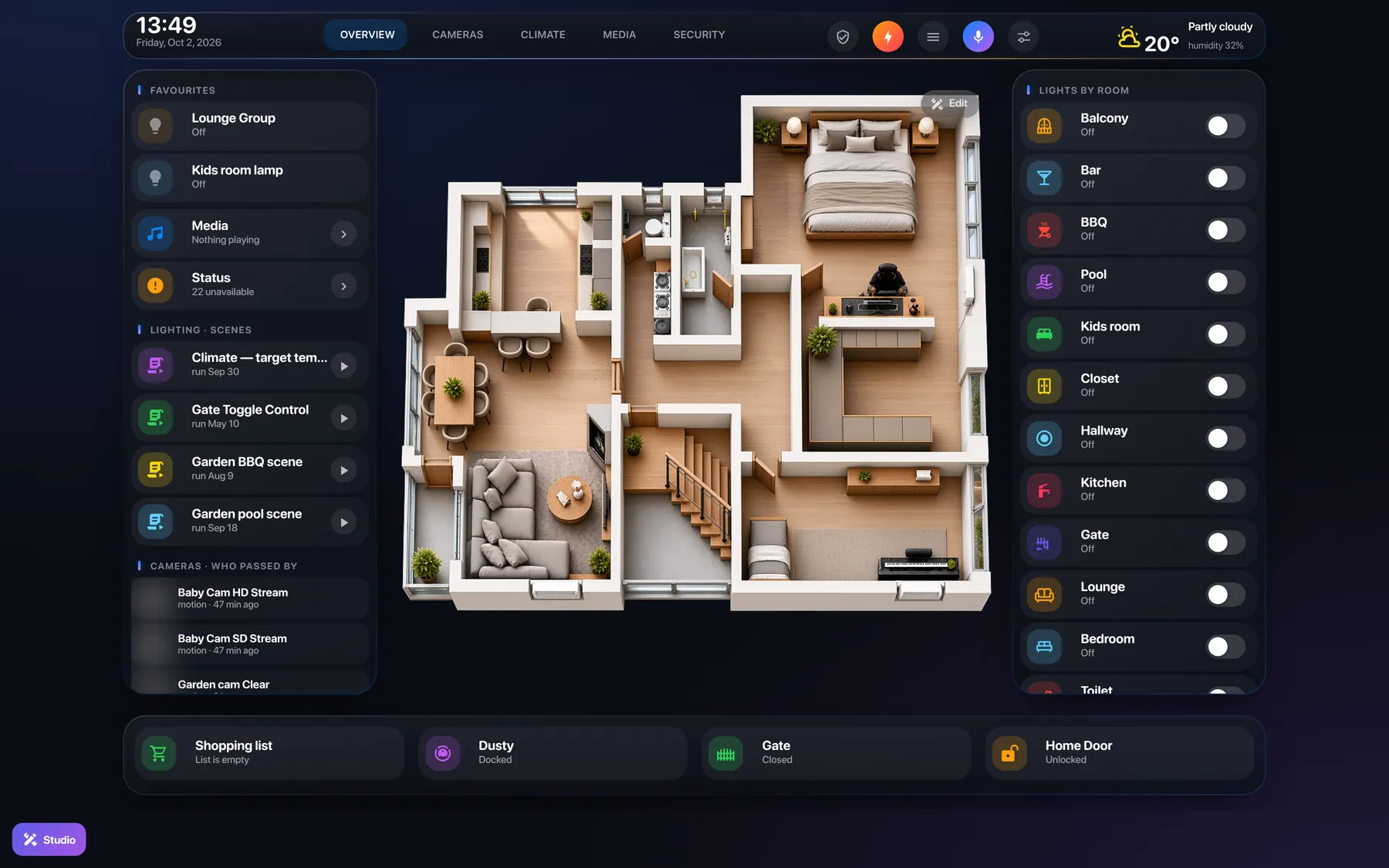
What makes it work on the wall
- Real full screen. The Home Assistant header and sidebar disappear completely (the app installs the free kiosk-mode add-on for this). Administrators bring them back with one button; everyone else just sees the dashboard.
- A layout only for the tablet. The phone, the tablet and the computer each get their own version. Make the plan bigger on the tablet and the phone stays as it is.
- Made for touch. Tap to switch, hold for details, long-press a module in the Studio and drag it. Panels slide in like in any app.
- Popups without extra add-ons. Lights of a room, a camera, the thermostat — they open in a glass window. Browser Mod is used if you have it, but it isn't required.
- Cameras that fit. One big live view, a list in its own column and a strip of snapshots — two cameras or twenty.
- Hard to break. Guests and kids can't open the editor. Every change can be undone, and any earlier save can be brought back.
Set up a wall panel in 10 minutes
- Install Mega Dashboard on Home Assistant (one button) and start it.
- Run the wizard on the tablet. At the first step pick “Wall tablet” as the screen. The wizard counts what you really switch by hand in the last 14 days and puts those devices first.
- Turn on full screen. In the Studio: Top bar → Full screen, turn on both switches, Save.
- Make it the tablet's start page. Open
/mega-dashboardin the Home Assistant Companion app or in a kiosk browser and set it as the start page.
Tips for the tablet itself
- Browser. The Home Assistant Companion app works well. Kiosk browsers such as Fully Kiosk Browser add screen on/off by motion, auto-start after a reboot and a locked-down mode.
- Battery. A tablet on the charger all day lasts longer if it charges only to about 80% — many tablets and kiosk browsers have that setting, or use a smart plug with an automation.
- User. Log the tablet in with a separate, non-admin Home Assistant user, so the editor never shows up on the wall.
- Screen size. 8–11″ in landscape is the sweet spot. On smaller screens the dashboard folds into one column with tabs that always fit.
Needs Home Assistant 2024.10+ and an administrator account for the setup. Free to use.