
An assistant that knows your home
Ask “is the garage closed?” and get a real answer — it knows your rooms and devices. Your own key, billed directly by the provider; nothing passes through us.
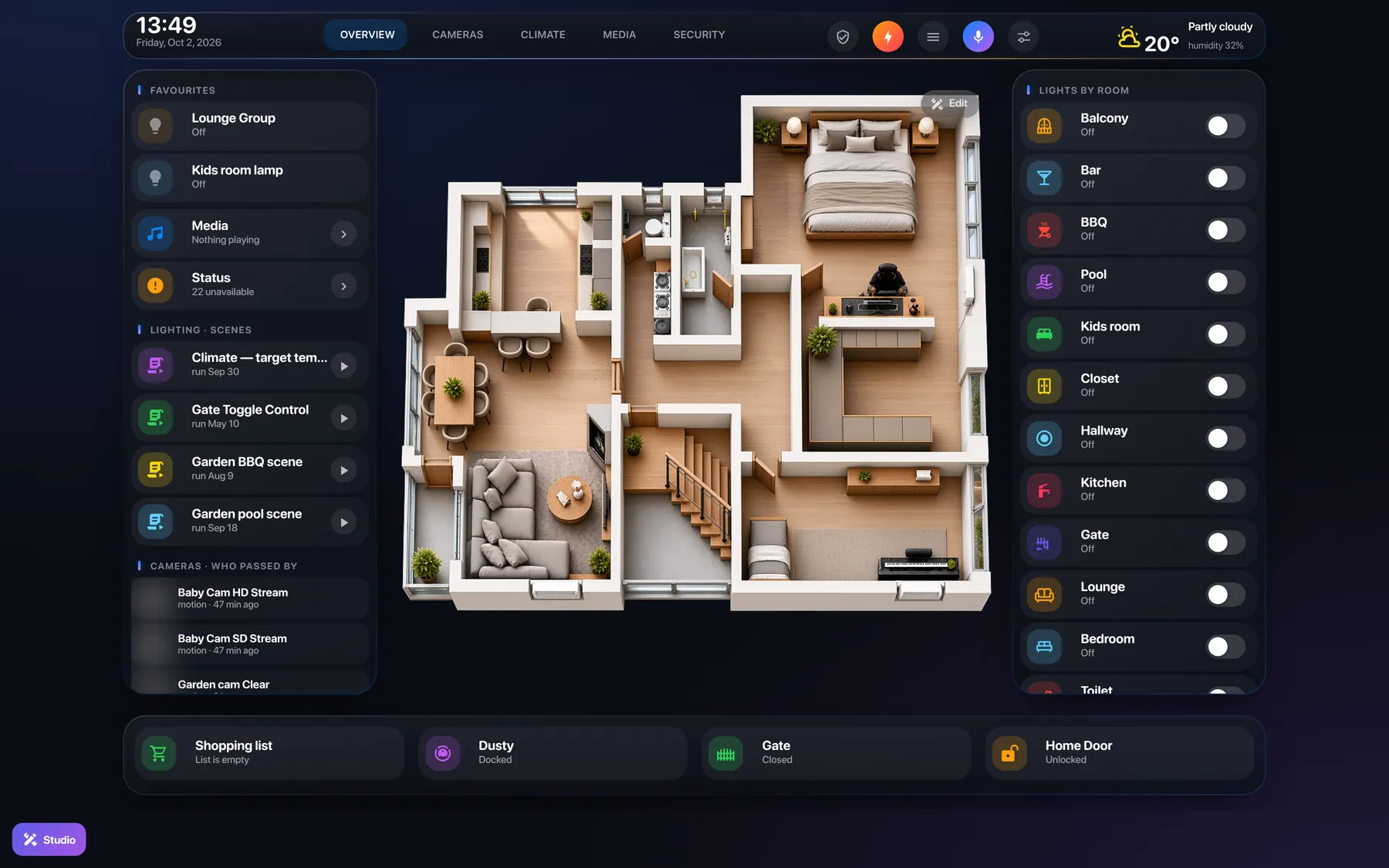
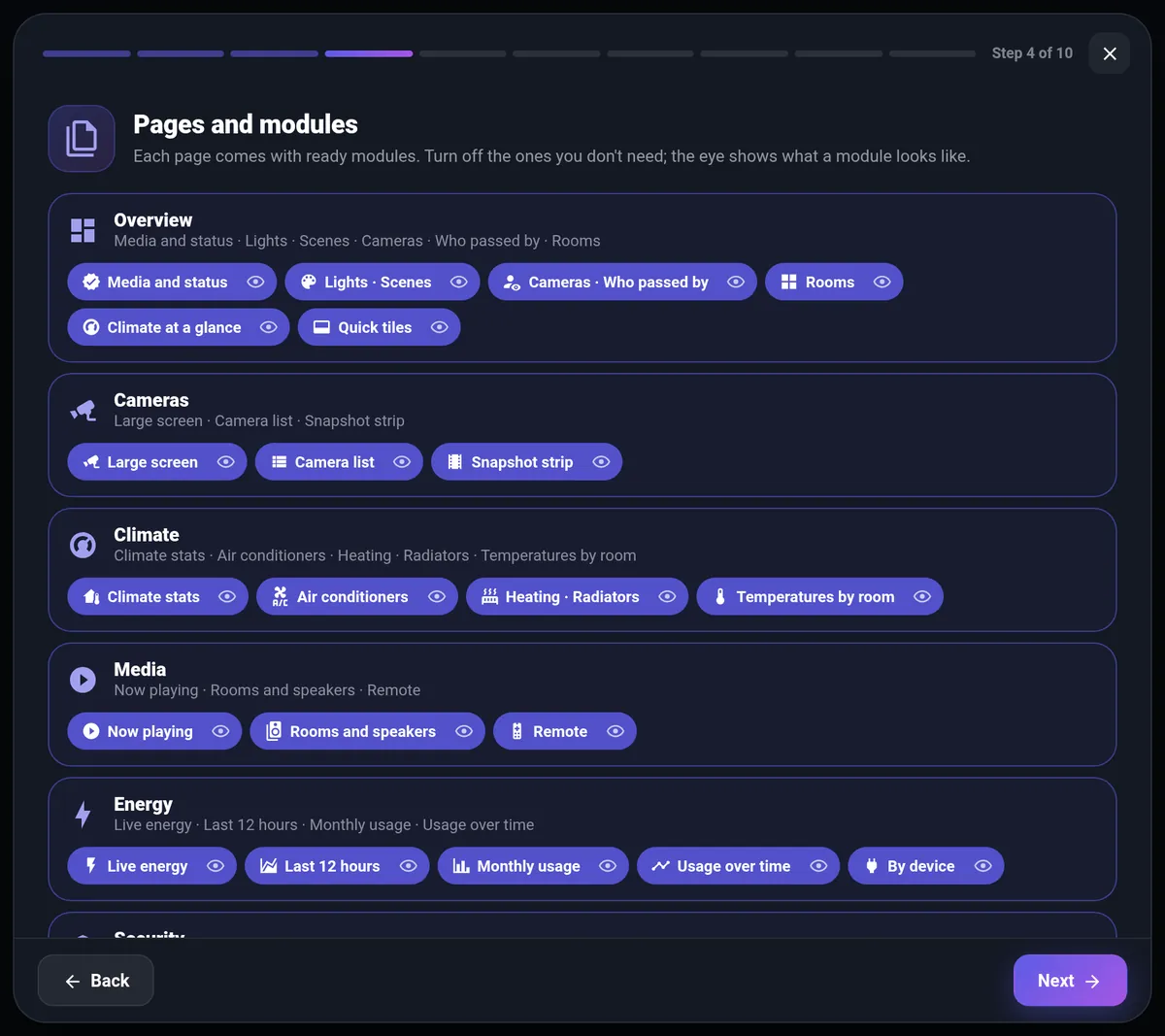
Skip the evenings of YAML and copy-pasted cards. Answer a few questions and Mega Dashboard builds the whole thing from your own home — rooms, lights, cameras, climate, media, energy. Don't like something? Tap it and change it, right on the dashboard.
☕ Free. If it saves you an evening, buy me a coffee.
Add the app in Home Assistant — it brings everything it needs. Honestly, that's the hardest part.
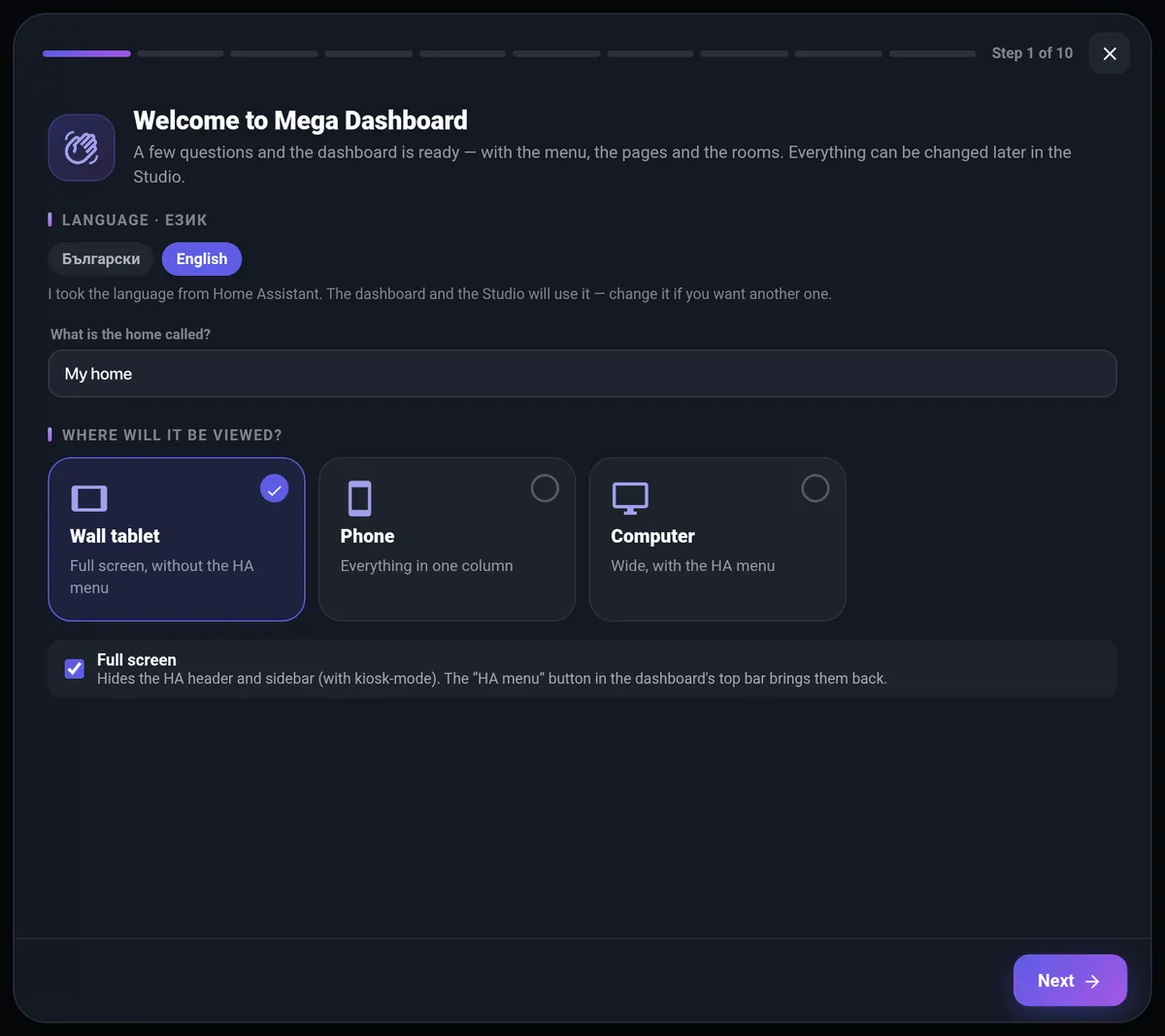
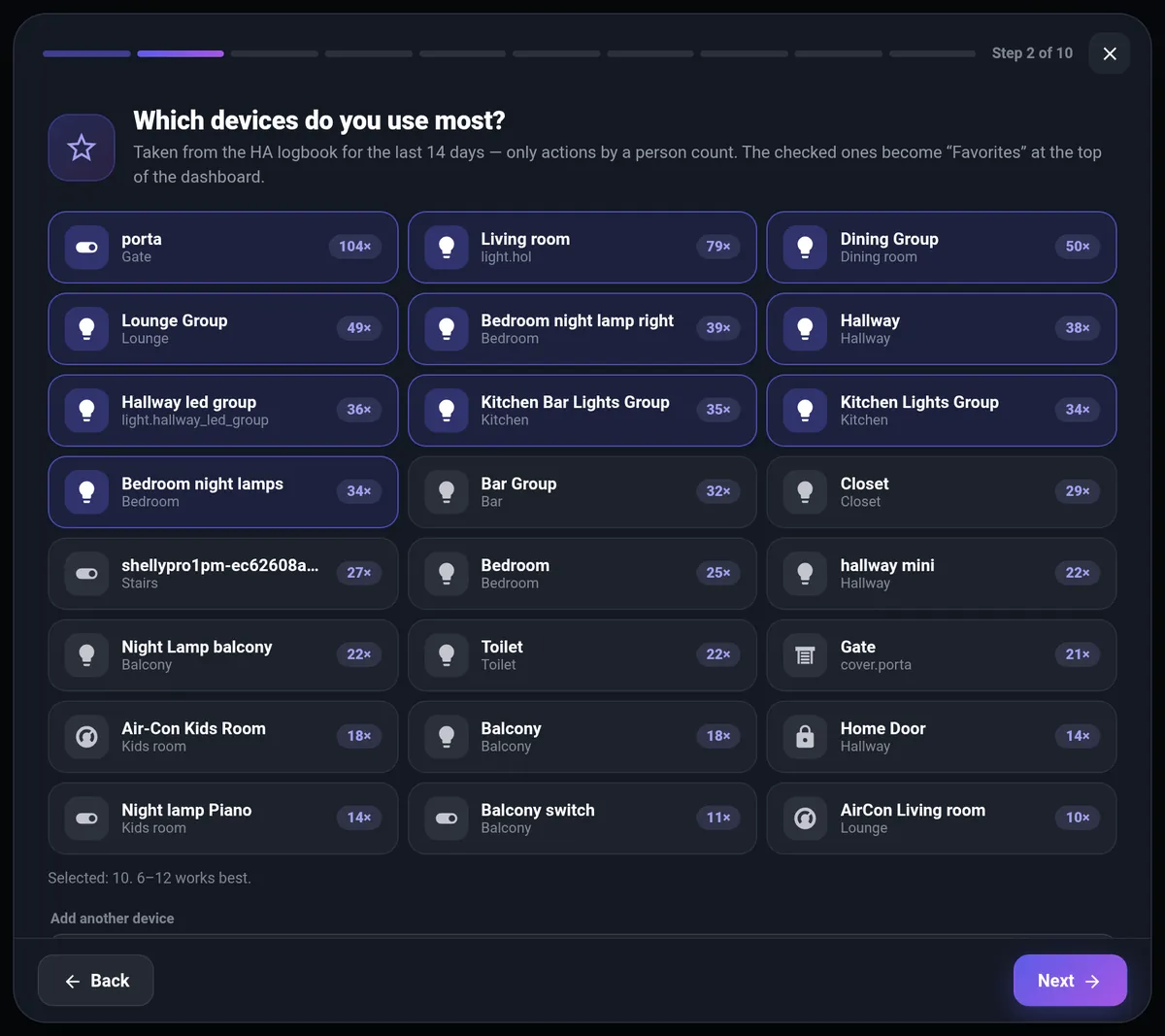
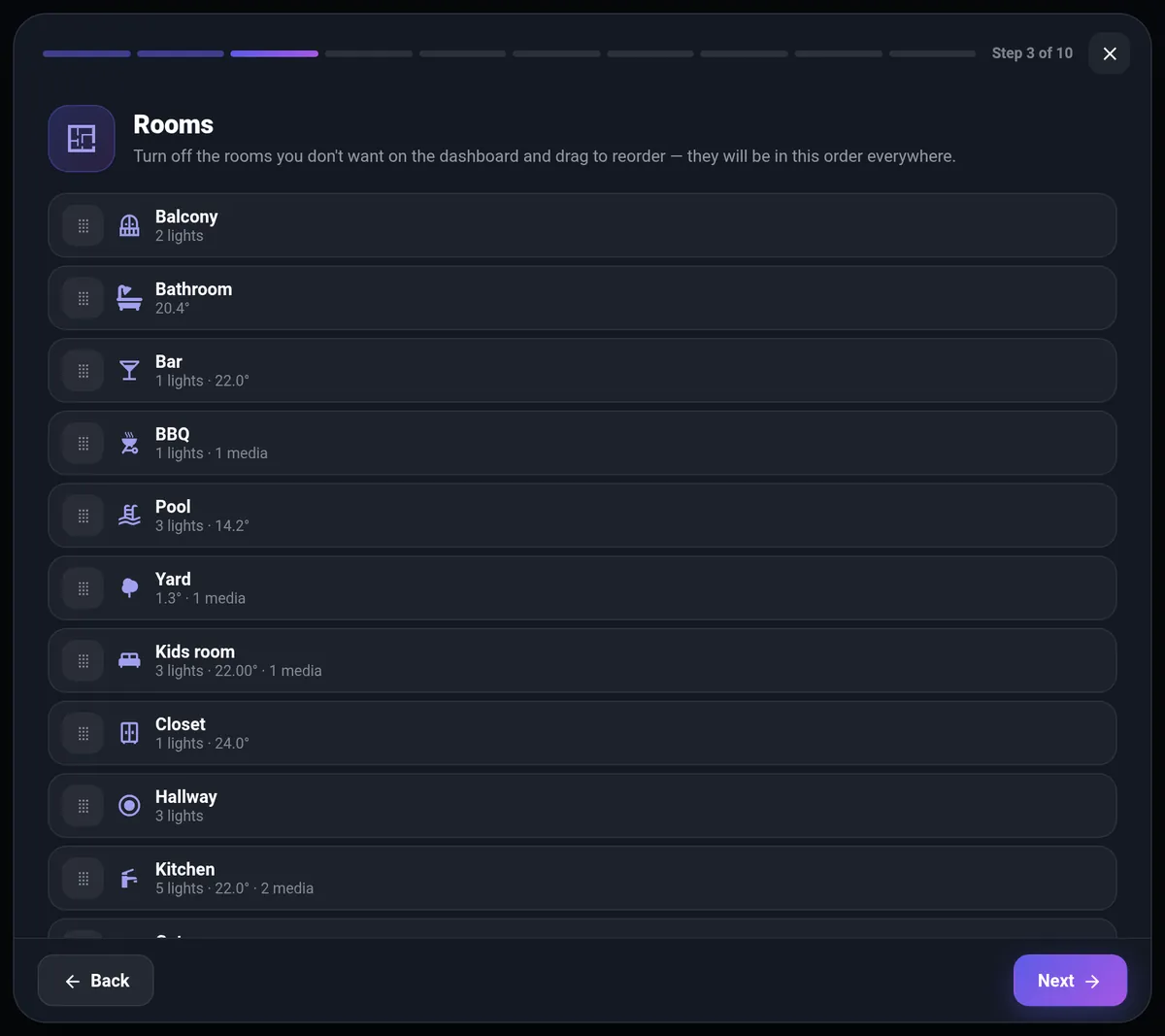
Your language, your screen, the devices you really use, rooms, pages, colours.
Move, resize, swap and recolour anything — on the dashboard itself, not in a maze of settings.
No more hunting for which card in which YAML file draws that one tile. In the Studio you tap the thing on the dashboard and change it. Modules fill themselves with your devices, every change shows instantly, and nothing is saved until you say so.
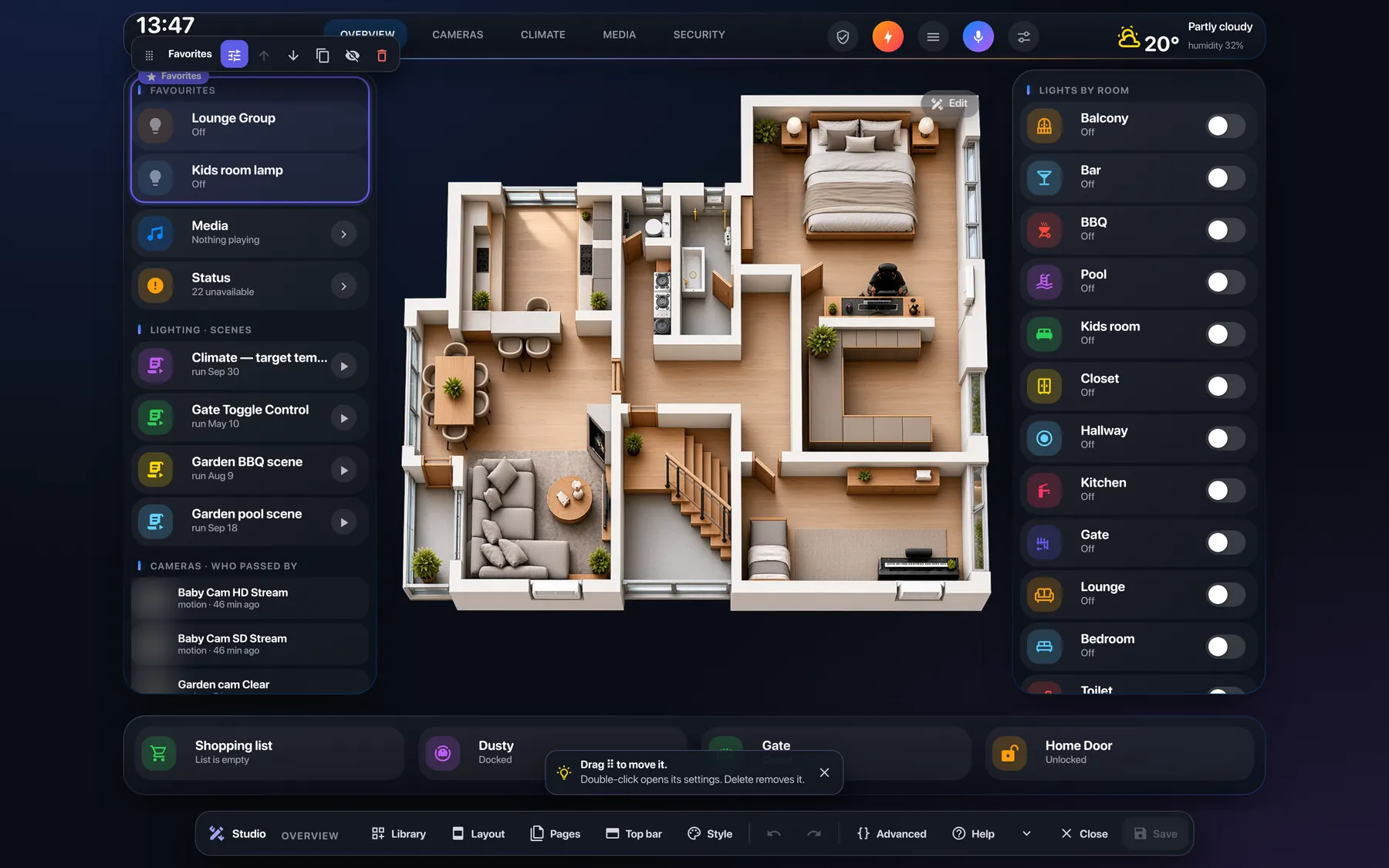
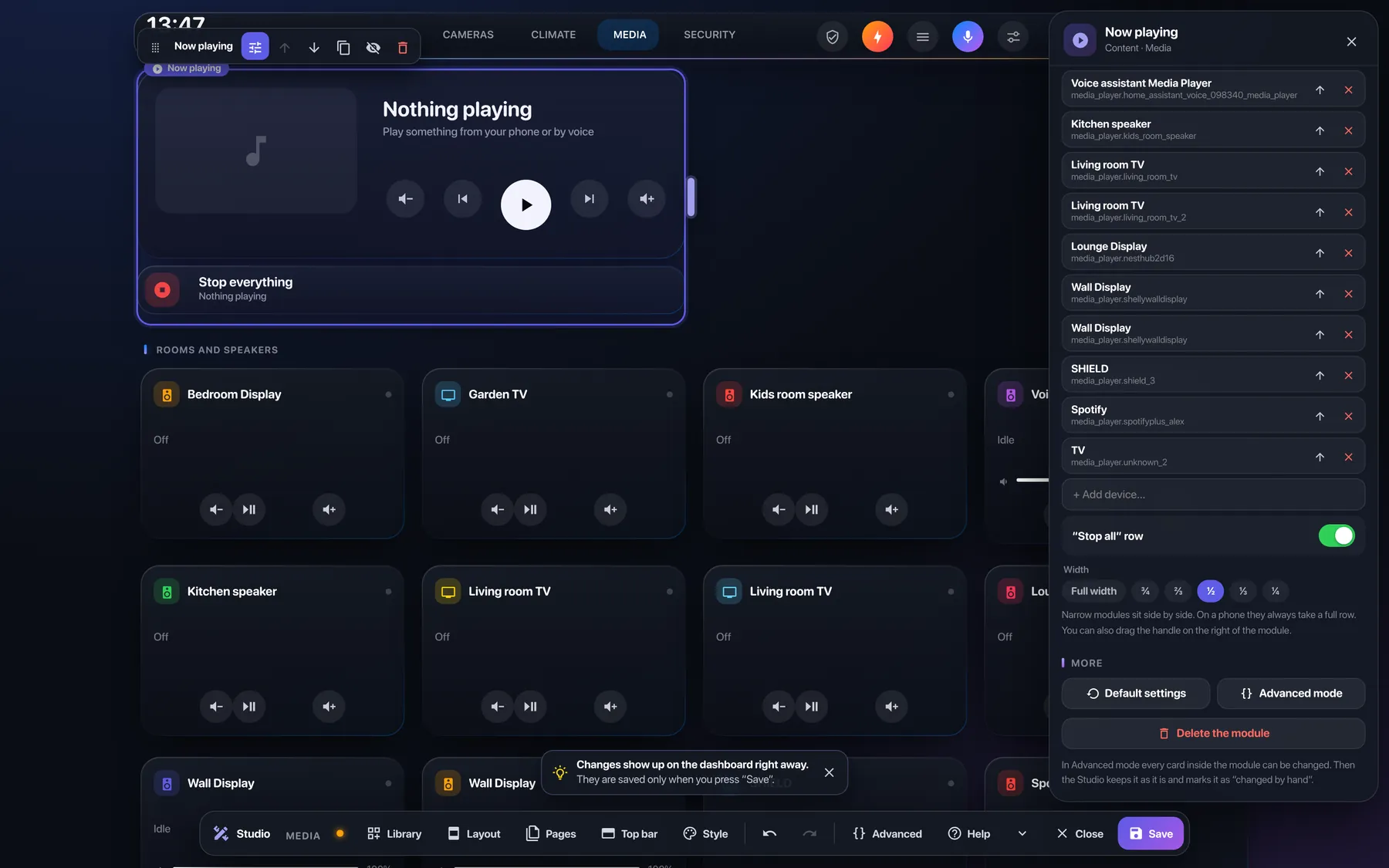
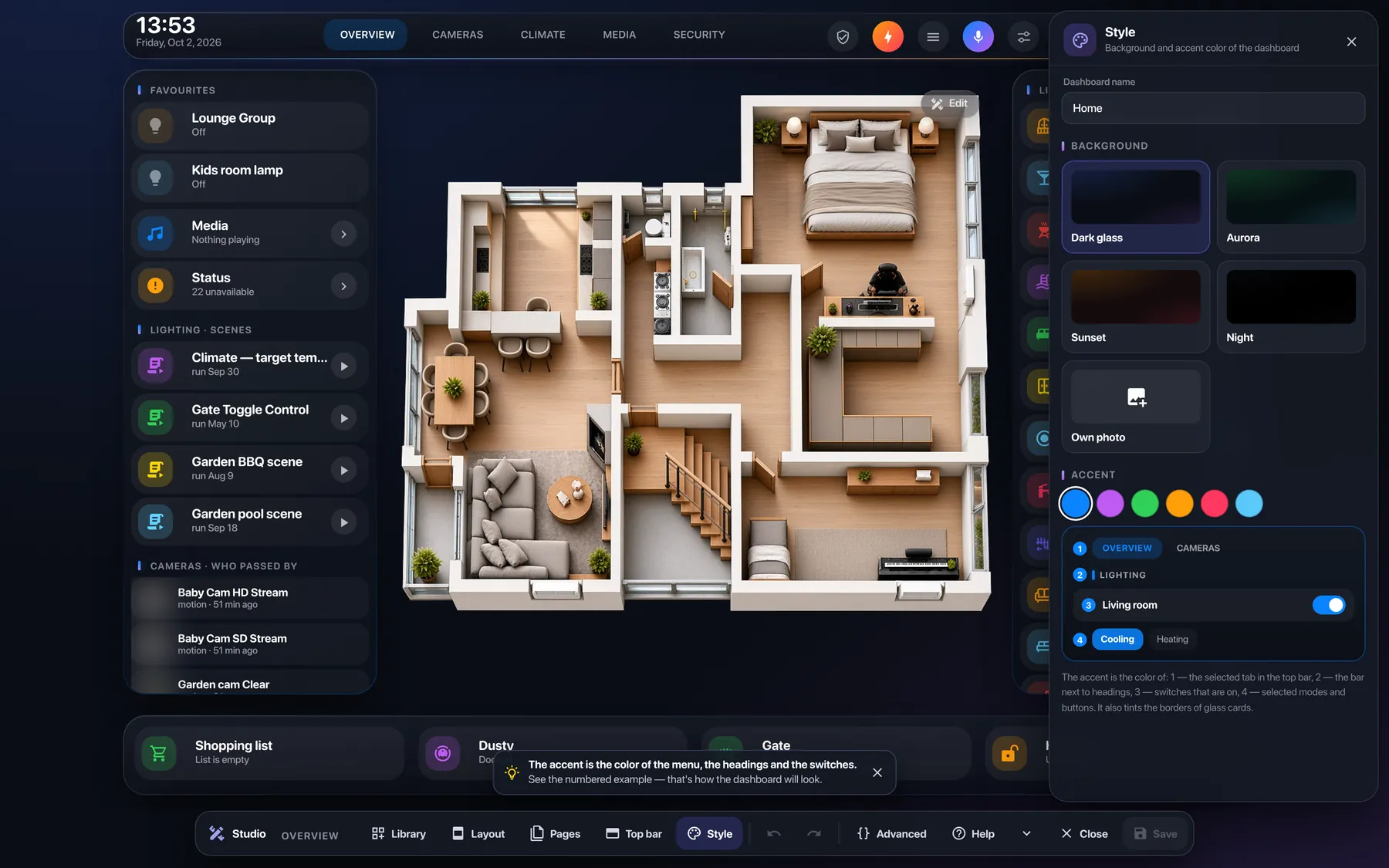
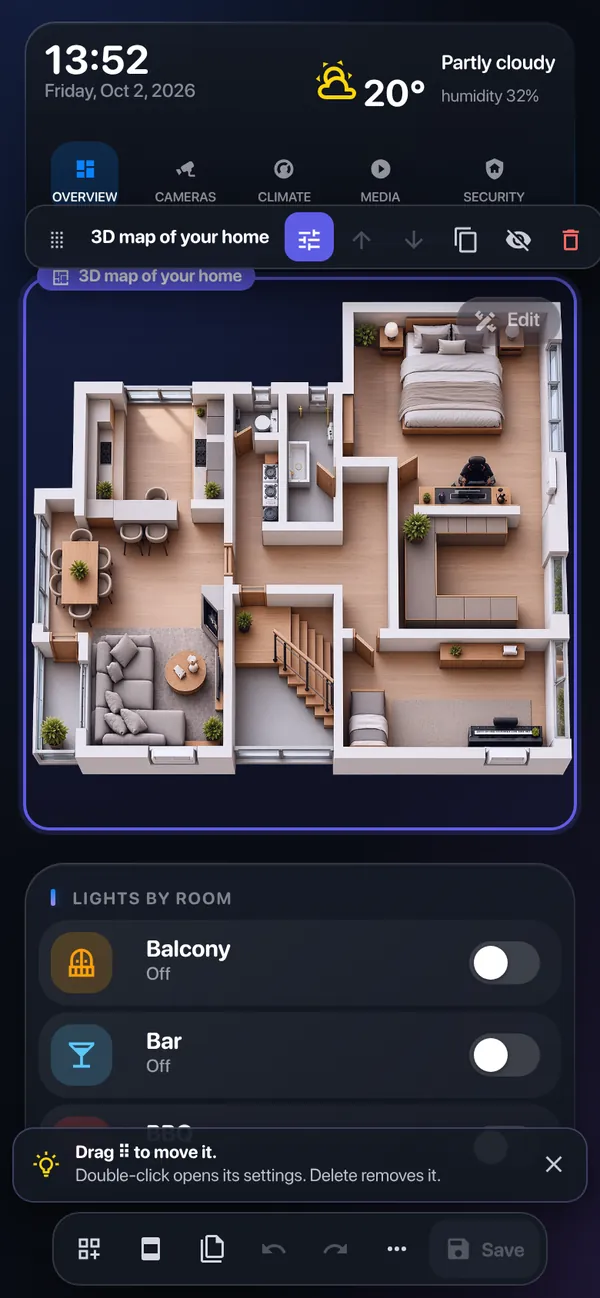
Tap any module and a small toolbar pops up: ⠿ to drag it somewhere else, ⚙️ for its settings, plus move, duplicate, hide and delete. Not sure what's next? The hint at the bottom always tells you what you can do right now.
The media player doesn't need the whole row? Slide the bar on its right edge — ¾, ⅔, ½, ⅓ or ¼. Narrow modules sit side by side, and on a phone they stack neatly again.
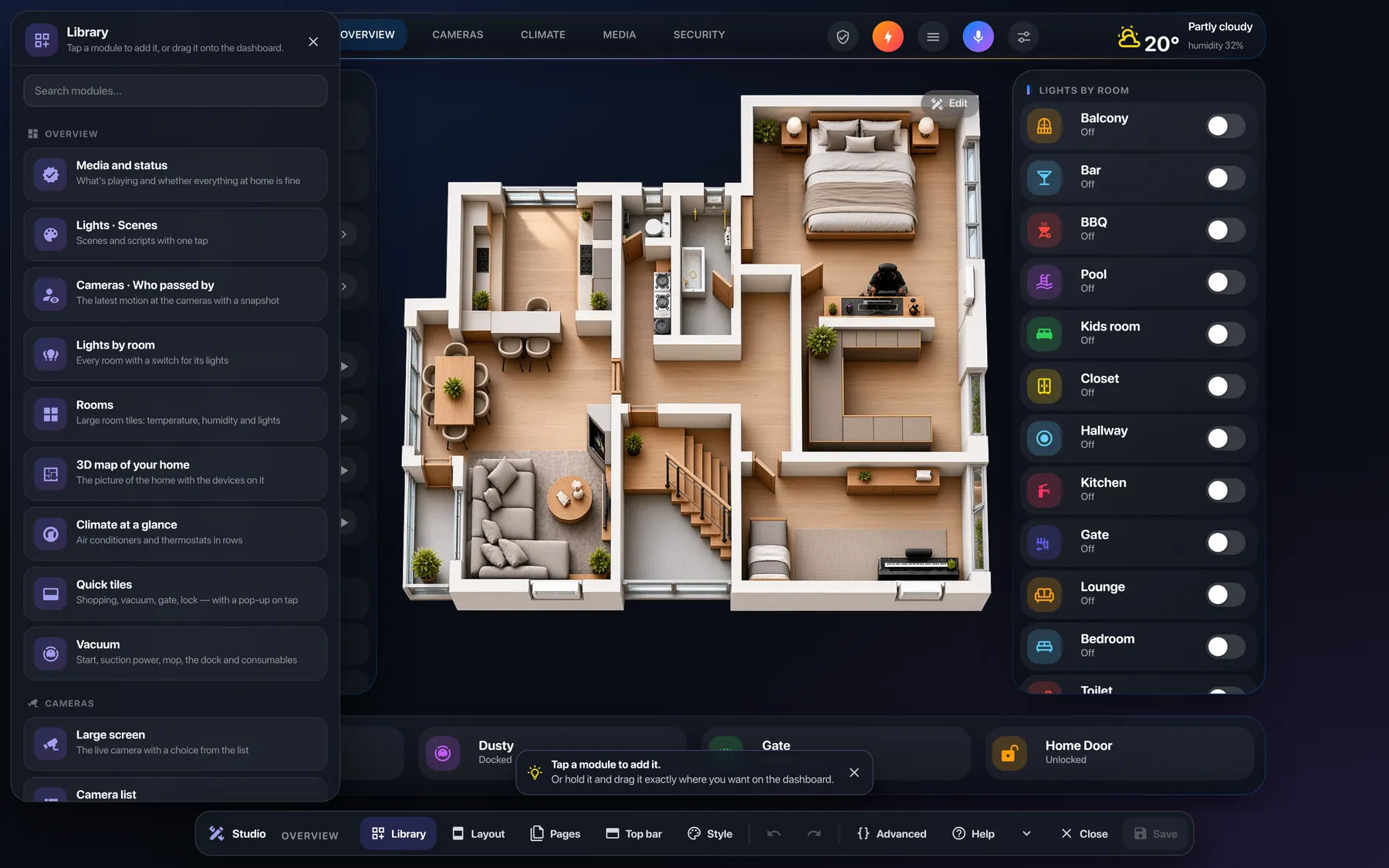
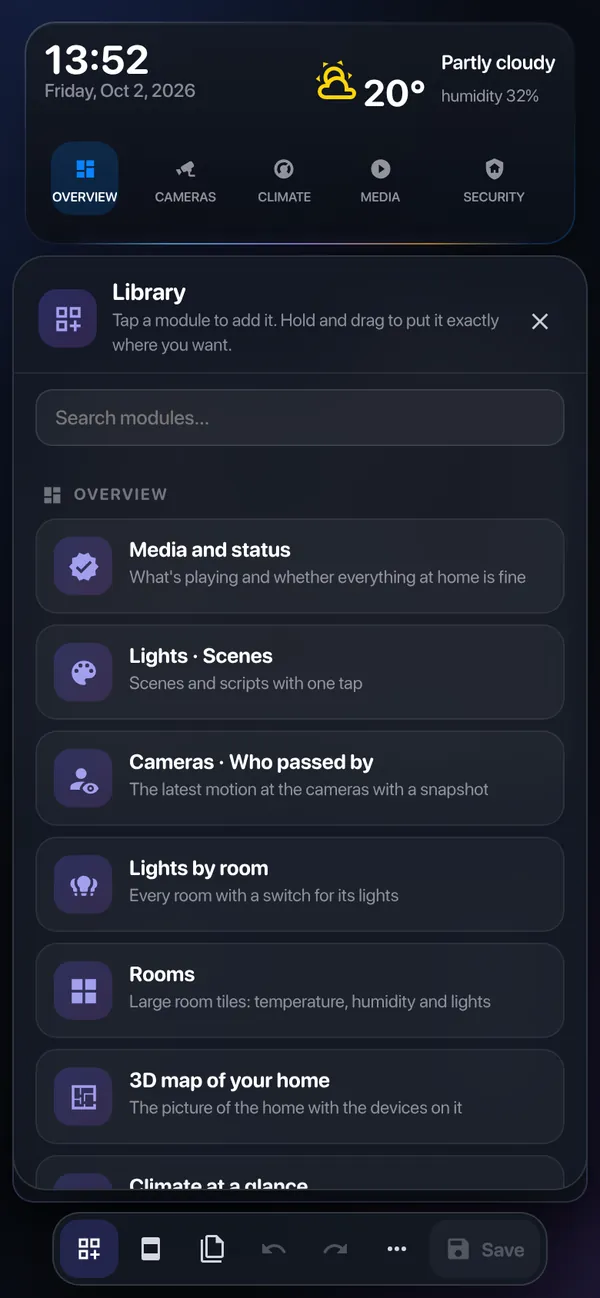
Rooms, lights, scenes, cameras, climate, radiators, media, remote, energy, locks, people, weather, vacuum, system and boxes to group your own — 37 in all, each shown with your own devices before you add it. The greyed-out ones tell you why they don't fit your home yet.
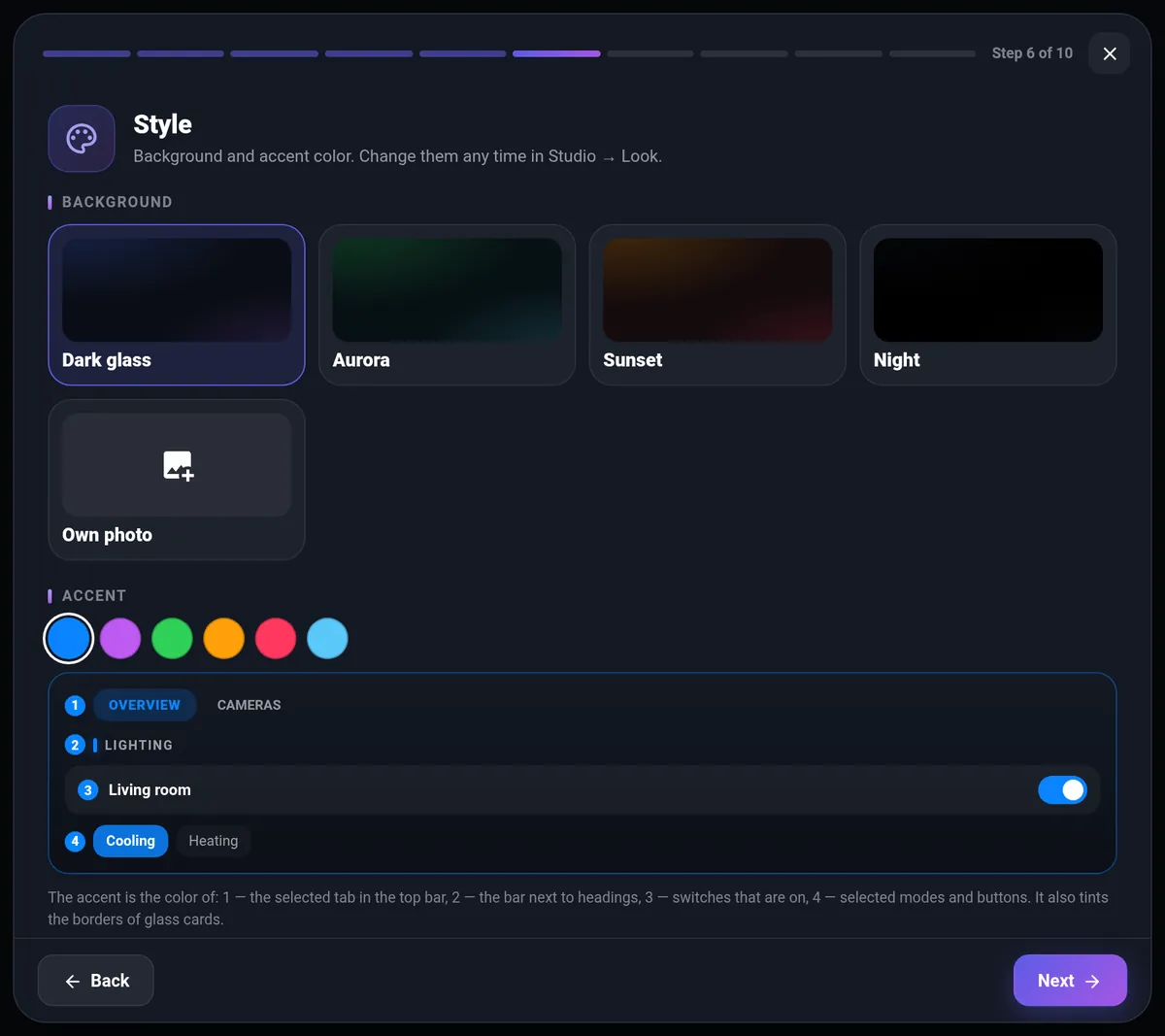
Glass, aurora, sunset, night or a photo of your own. And no more guessing what “accent colour” means: a numbered example points at every spot it paints — the active tab, heading bars, switches, selected modes.
A faithful mini copy of the real Studio — the same frames, toolbars, side panel and hints you get in Home Assistant. Follow the five steps. Nothing here can break and nothing is sent anywhere.
It doesn't start from a blank page — it starts from your home. And nothing is final: everything can be changed later in the Studio.
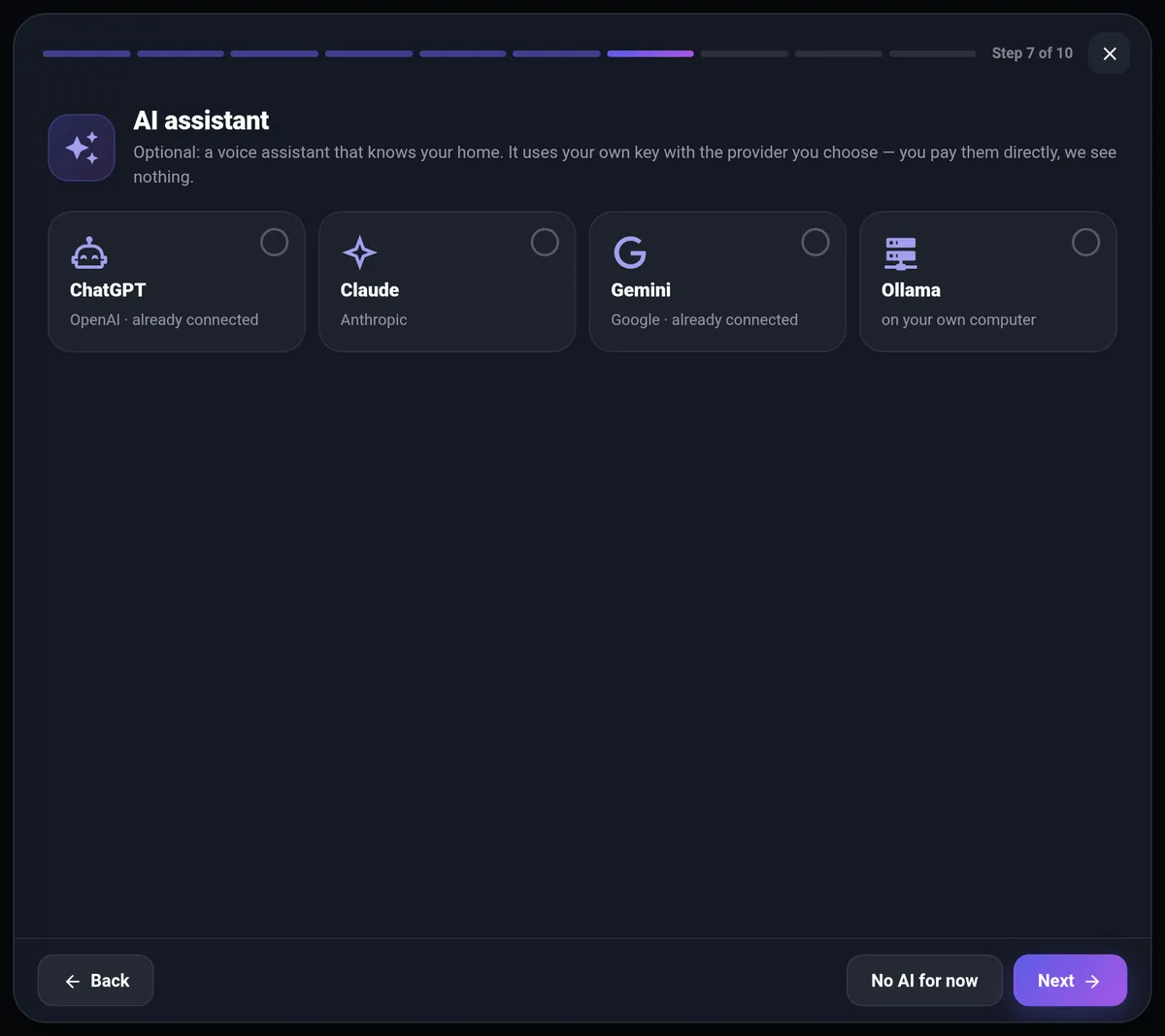
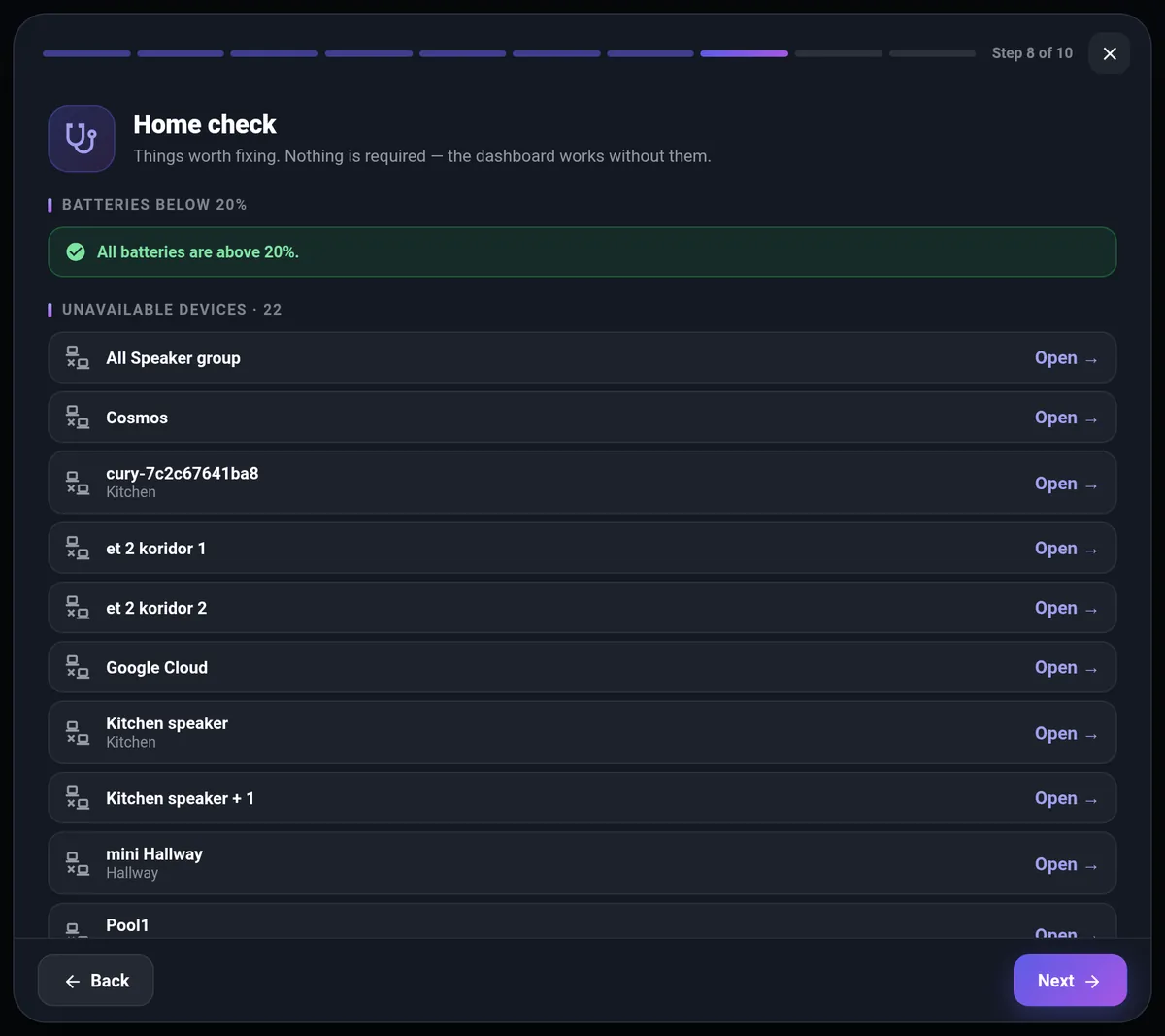
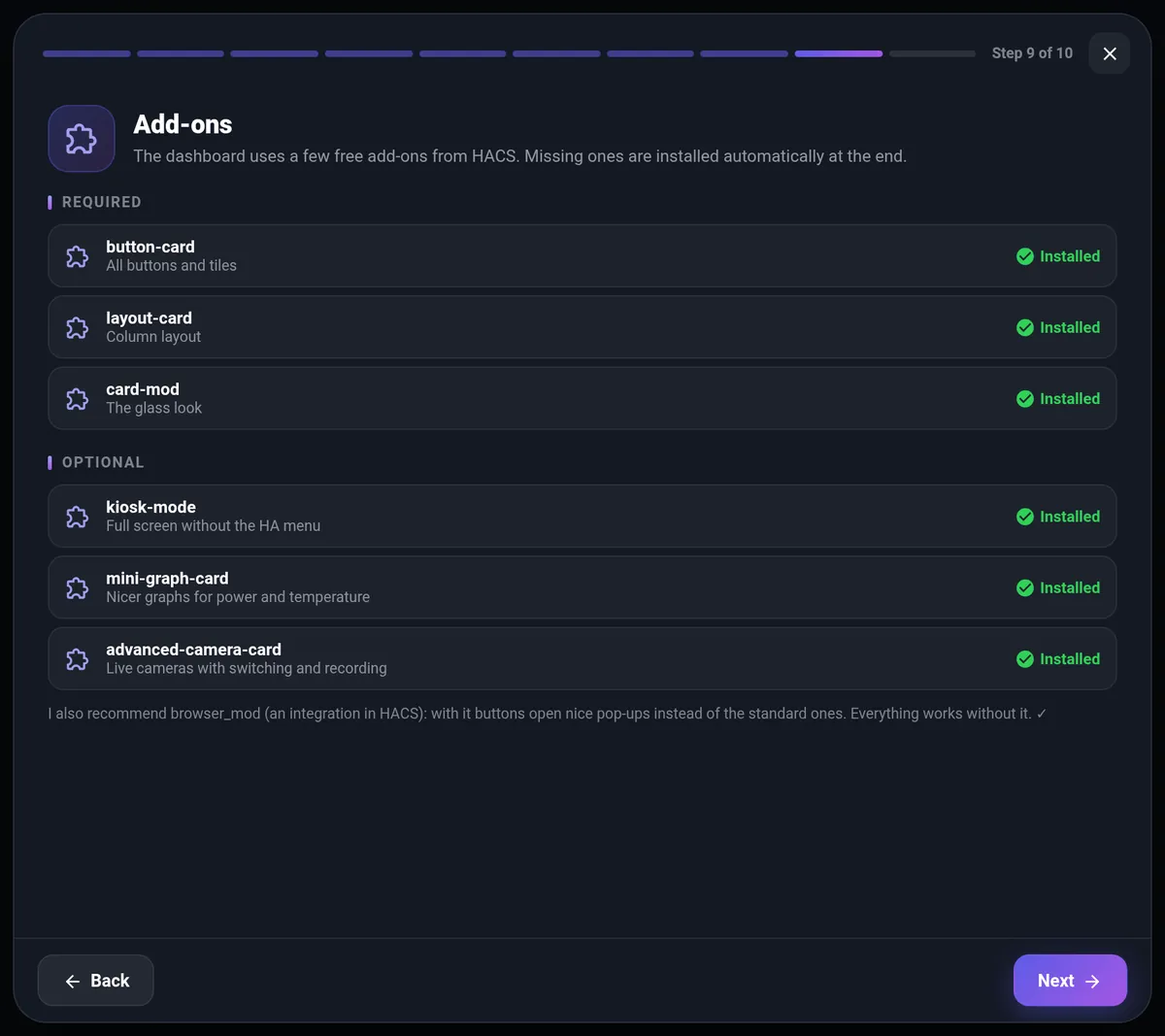
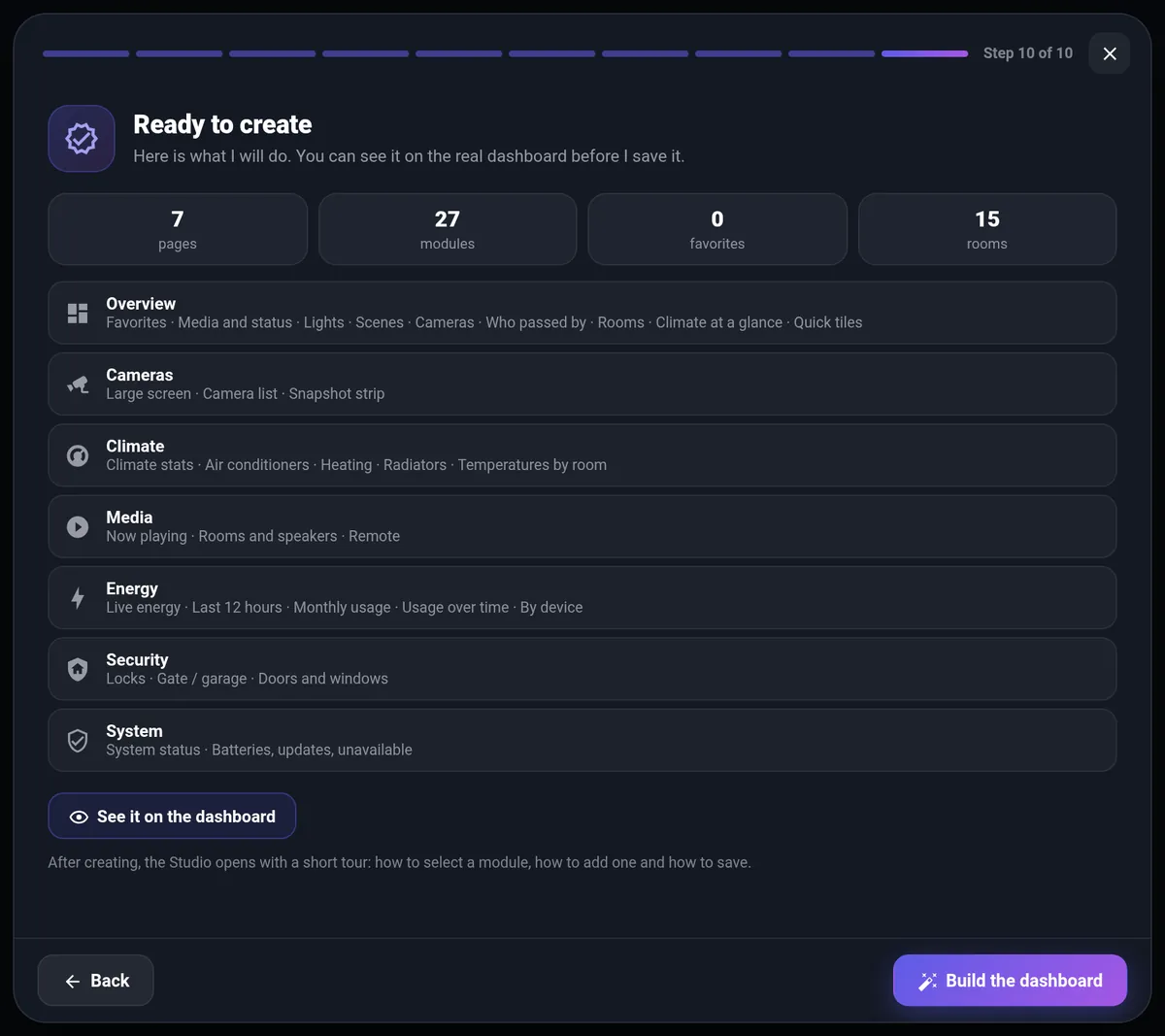
Ask “is the garage closed?” and get a real answer — it knows your rooms and devices. Your own key, billed directly by the provider; nothing passes through us.
Find the sensor at 8% battery before it dies at 3 a.m. Plus devices that stopped answering and lights that belong to no room.
One big live view, a list that scrolls in its own column and a strip of snapshots. Two cameras or twenty — it still fits the screen.
Made for the tablet in the hallway: the Home Assistant header and sidebar disappear completely. Admins bring them back with one button.
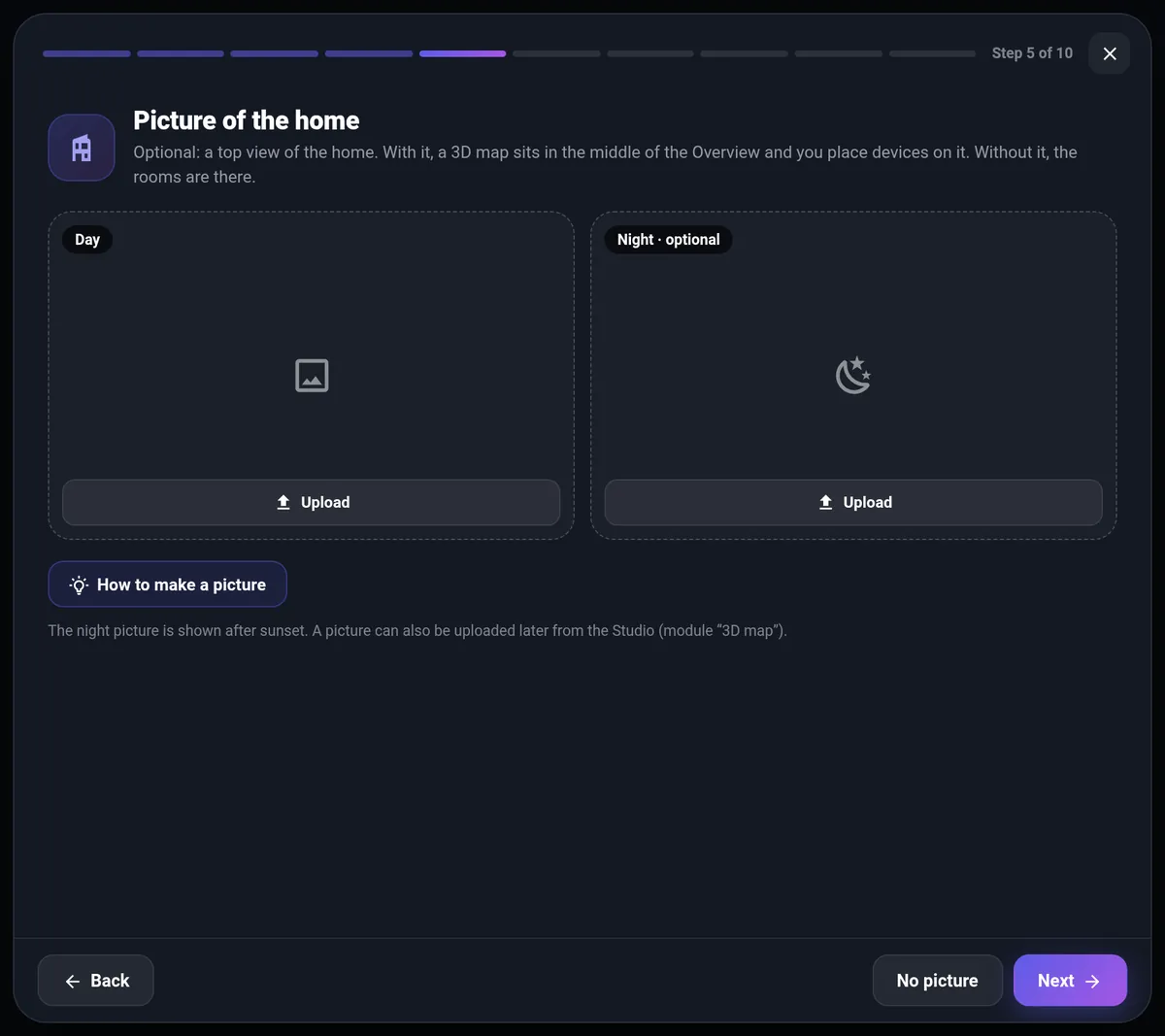
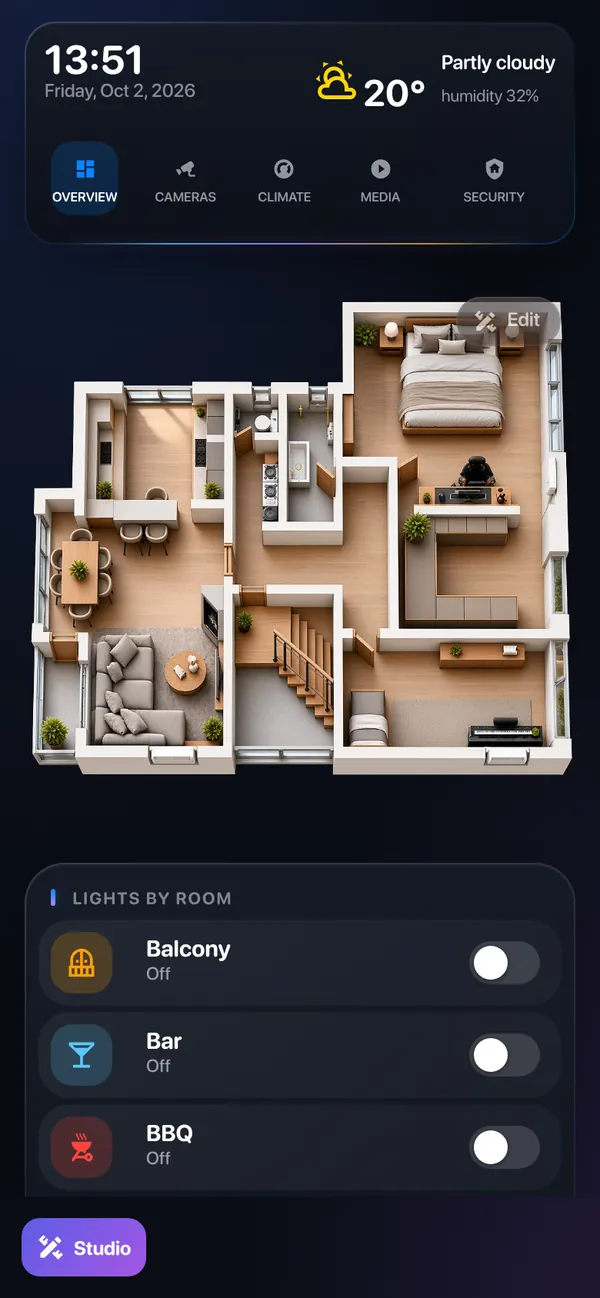
Put your devices on a picture of your home. Each light lights up its own room — draw the room's shape and that's it, no cut-out pictures. The AC animates, after sunset the night picture takes over, and a new picture of the house keeps everything in place.
Undo anything, step by step. If someone else edits the dashboard in the meantime, you'll know. And every save can be restored later.
Need something the modules don't do? The full card editor is one click away — a tree of the whole dashboard, forms instead of YAML and Ctrl+K search.
Right-click a button, choose New popup on tap and fill it in a real popup editor. They open even without Browser Mod — as a glass window on a computer and a sheet from the bottom on a phone.
Right-click any element in the Studio: settings, move, copy, hide, lock, delete, a new element after it or a new popup — no hunting for buttons.
Every setting a card has, as a plain list with names, switches and colour and icon pickers — even the ones with no field in the forms. JSON is still there for the pros.
Add a box or a module on its own row anywhere — under the top menu or below the last row — and a panel that slides out from the right with a tap or a hover.
It asks on first open and suggests your Home Assistant language. Keyboard shortcuts work on a Cyrillic layout too — no switching back and forth.
Long-press a module until it lifts, then drag it where you want. Panels slide up from the bottom like in any app, and the dashboard folds into one tidy column with tabs that always fit. The phone, the tablet and the computer each get their own version: hide, move or restyle something on the phone and the others stay as they are.
Press the button — Home Assistant adds the app store and opens Mega Dashboard. Or go to Settings → Apps → App store → ⋮ → Repositories and add:
https://apps.mega-dashboard.eu/Press Install, then Start. The app brings the dashboard and every add-on it needs, and creates a Mega Dashboard dashboard. Reload the browser once (Ctrl+F5, or reopen the app on phones).
Open it from the sidebar — the wizard starts by itself. On any other dashboard, press Settings in the bottom-left corner.
Full guideNeeds Home Assistant OS or a Supervised install (they have the app store), version 2024.10+, and an administrator account. The app installs button-card, layout-card, card-mod, kiosk-mode, mini-graph-card and advanced-camera-card — all free and open source; the ones you already have from HACS are left as they are.
Only when you press Save. Pages you made by hand stay exactly as they are — the Studio marks them and leaves them alone. Every save is kept in the history.
Yes. In the Studio the bar above the bottom one picks the version you edit — computer, tablet or phone — and everything you change applies only to it. Turn on “All” to change every version at once, or use ⧉ to copy a page or the whole layout from one version to another.
No. Everything runs in your browser and your Home Assistant. Only the optional AI assistant talks to the provider you choose, with your own key.
No — only administrators. Everyone else just sees the dashboard.
Full screen uses the kiosk-mode add-on, which the app installs (unless you turned it off in the app options). In the Studio open Top bar → Full screen and turn on both switches, then Save. Dashboards from older versions get it on the next save.
Yes, it's free to use; all rights reserved. If you'd like to say thanks, you can buy me a coffee ☕
Please open an issue on GitHub, or ask and share ideas in Discussions.
Just install the app. It takes over: the dashboards switch to the app's copy, your saved dashboards stay as they are, and the add-ons you got from HACS are left alone. After that you can remove Mega Dashboard from HACS.
These installs have no app store, so the app can't run there. Write in Discussions and tell me about your setup.
Free, and ready before your coffee gets cold.
Add to Home Assistant Buy me a coffee